
I used to spend an entire Sunday manually reaching out to 100 Instagram influencers. Ten hours of copying profile links, hunting for email addresses, writing personalized messages, and updating spreadsheets. By the end, my back hurt, and I’d only contacted 43 people.
That’s when I decided to automate the whole thing.
What you’re about to read is the exact Influencer Outreach Automation system I built using n8n, complete with every error I hit and how I fixed them. This isn’t a theoretical tutorial. I’m showing you the actual workflow that’s running right now, sending personalized outreach emails to qualified influencers while I sleep.
Here’s what this automation does. It scrapes Instagram profile data using RapidAPI, extracts follower counts and bio information, and automatically finds contact emails either from the bio or via an email-finding API. After that, it uses Groq AI to score each influencer on a 0-100 scale based on niche fit and audience quality. For qualified influencers, it generates completely personalized outreach emails using AI, sends them via Gmail SMTP, and automatically follows up twice with smart timing. Everything gets tracked in Google Sheets, so you always know where each conversation stands.
The result? I went from 10 hours of manual work to 30 minutes of setup per campaign. I’m now reaching out to 200+ influencers per month, up from 40.
Fair warning, though: this is an advanced build. I hit 10+ errors while putting this together, and some took me an hour to debug. But I’m going to show you exactly what went wrong and how I fixed it, so you don’t waste the same time I did.
What You’ll Need to Get Started
Before we start building the Influencer Outreach Automation, let me walk you through everything you need. I’ve broken this down into what’s absolutely required versus what’s optional.
For your core infrastructure, you need n8n running somewhere. I used a self-hosted instance on my local machine, which costs nothing but requires some technical comfort. If you’d rather not deal with installation and maintenance, n8n Cloud costs $20 per month and works identically. The workflow I built runs on either setup without any changes.
You also need a Google account for two things. First, Google Sheets will serve as our database for tracking all the influencer data. Second, we’ll use Gmail’s SMTP service to actually send the outreach emails. Gmail lets you send 500 emails per day for free, which is plenty for most campaigns. You can also use any email service provider, such as Brevo, which offers a generous sending limit of 300 emails per day.
On the API services side, you’ll need a RapidAPI account to access their Instagram scraper. The free tier gives you 20 requests per month, so you can enrich 20 influencer profiles without paying. I eventually upgraded to their Basic plan at $10 per month when I started scaling, but I started with the free plan.
Groq API is where this gets really exciting. They have an incredibly generous free tier that gives you 14,400 requests per day. I’m not kidding. That’s enough to process thousands of influencers and generate all their personalized emails without spending a cent. I use their Moonshot AI Kimi model, which is fast and produces great results.
For email sending, you’ll need to set up a Gmail App Password. This is different from your regular Gmail password and takes about 5 minutes to generate. I’ll walk you through the exact steps later, but basically, you enable 2-factor authentication on your Google account, then generate a 16-character app password specifically for n8n.
The whole setup took me about 90 minutes the first time, including figuring out where everything was and fixing my mistakes. Now that I know the process, I can set up a fresh instance in 20 minutes.
As for monthly costs, if you use all the free tiers and self-host n8n, you’re looking at exactly $0 per month. That covers enriching 20 influencers and sending a few emails. When you need more volume, expect to spend $10-20 monthly for upgraded API access. If you use n8n Cloud instead of self-hosting, add another $20.
On the technical skills front, you should be comfortable with APIs, JSON, and basic JavaScript. You don’t need to be an expert, but you should know how to read API documentation and understand what a JSON response looks like. The ability to debug errors is crucial because you will hit issues. I certainly did.
Understanding How This System Works
Before we start building, I want to show you the big picture of what we’re creating. I structured this as three separate but connected workflows, and understanding how they fit together will make the build process much clearer.
The first phase is data collection and enrichment. This runs manually whenever you add new influencers to your Google Sheet. The workflow reads all the Instagram handles from your spreadsheet, then loops through them one at a time with a 2-second delay to respect the API rate limits. For each handle, it calls the Instagram scraper API via RapidAPI to retrieve profile data, including follower count, bio, post count, and verification status.
After scraping Instagram data, the workflow checks whether an email address is visible in their bio. Many influencers put their contact email right in their bio, so we extract it using a regex pattern. If we find an email there, perfect. If not, the workflow automatically calls an email-finding API that searches for their contact information based on their name and any website URLs in their profile. Once we have an email from either source, the workflow merges all the data together.
The enriched profile data gets sent to Groq AI, which acts as an influencer marketing analyst. I gave it a specific prompt about what makes a good partnership fit, including minimum follower counts and niche preferences. The AI scores each influencer from 0 to 100 and determines whether they’re qualified or not. All of this information, including the Instagram data, email, and AI analysis, gets written back to your Google Sheet.
Phase two is the personalized outreach sequence. This kicks in right after enrichment completes. The workflow filters for influencers who are both qualified according to the AI and have a valid email address. Before generating emails, there’s a test mode toggle I added that lets you send all emails to your own address instead of real influencers. This saves you from accidentally spamming people during testing.
For each qualified influencer, the workflow sends their profile information to Groq AI again, but this time with a different prompt. The AI generates a completely personalized outreach email that references their specific niche, content style, and audience size. It creates both a subject line and email body that feel genuine and conversational, not like generic cold email templates.
The generated email gets formatted into proper HTML, then sent via Gmail’s SMTP service. Immediately after sending, the workflow logs a timestamp in your Google Sheet and updates the influencer’s status to “awaiting response.”
Phase three handles automated follow-ups and runs on a schedule. Every morning at 9 AM, the workflow reads your entire Google Sheet and checks who needs a follow-up. The logic is simple but effective. If someone received the initial email 3 days ago and hasn’t responded, they get their first follow-up. If they got the first follow-up 4 days ago and still haven’t responded, they get a second and final follow-up.
The follow-up emails are also AI-generated, but I tuned the prompts differently. The first follow-up adds value by mentioning case studies or success stories from similar influencers. The second follow-up uses gentle urgency, like mentioning that you only have a few partnership spots left. After sending each follow-up, the workflow updates the appropriate timestamp column in your sheet.
The beauty of this structure is that once you set it up, it runs itself. You just add Instagram handles to your sheet, trigger the enrichment phase, and the system takes over. Outreach happens automatically for qualified people, follow-ups send themselves after the right delays, and everything stays organized in one place.
I designed this with production use in mind from the start. Every step includes error handling, so the workflow doesn’t crash if a single API call fails. The rate limiting prevents you from hitting API quotas too quickly. The test mode means you can safely try changes without bothering real influencers. And the status tracking in Google Sheets ensures you never accidentally send duplicate emails to the same person.
Setting Up Your Google Sheets Database

The first thing you need to do is create your tracking spreadsheet. Open Google Sheets and create a new sheet called “Influencer Outreach Sheet.” This will be the central hub for all your data.
In row 1, set your column headers exactly as I’m about to show you. The names must match perfectly because the workflow uses these exact names to map data. Type these headers starting from column A: instagram_handle, full_name, bio, follower_count, following_count, email, ai_score, niche, status, first_email_sent, followup_1_sent, followup_2_sent, notes.
Make sure each column is wide enough to display the full header name. For your initial test data, add some Instagram handles in column A starting from row 2. Include the @ symbol if you want, or leave it off. The workflow handles both formats. I recommend starting with 5-10 verified accounts that have public profiles. Good test handles include @nike, @garyvee, @hubermanlab, or @kayla_itsines. These are established accounts with complete profile data, so they’ll give you clean results as you learn the system.
Leave all the other columns empty for now. The workflow will fill them in automatically during the enrichment phase.
Getting Your API Keys and Credentials
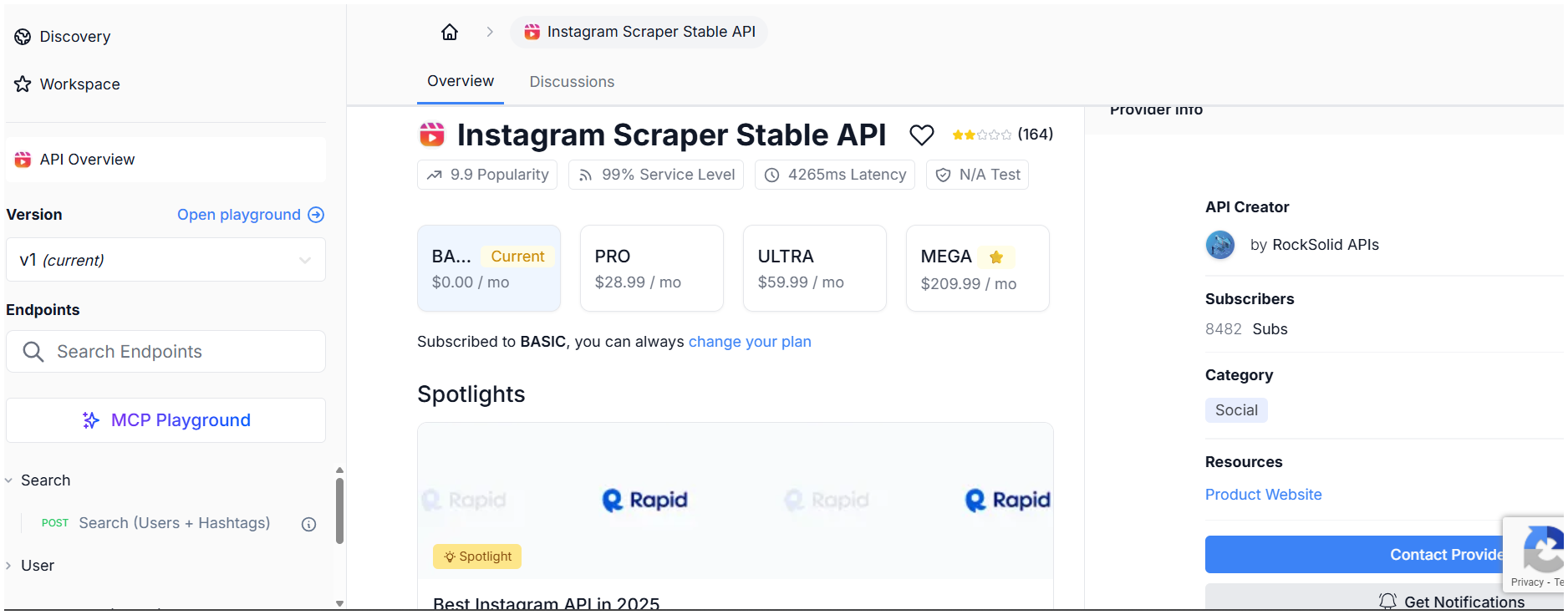
Now we need to set up access to all the external services this workflow uses. Start with RapidAPI since that’s where we’ll get Instagram data.
Go to rapidapi.com and create a free account. Once you’re logged in, search for “Instagram Scraper Stable API” in their marketplace. Subscribe to the Basic plan, which is free and gives you 20 requests per month. After subscribing, click on the “Endpoints” tab and find the one called “Basic User + Posts.” This is the specific endpoint we’ll use. Make sure you’re using “Basic User + Posts,” which has the URL path /ig_get_fb_profile_hover.php.
Click “Test Endpoint” on the RapidAPI page and enter “nike” as the username. Look at the response structure carefully. You’ll see the data is nested under an object called user_data. Inside that object, you’ll find follower_count, full_name, biography, and all the other profile fields. This structure matters because we need to reference it correctly in our code later.
Copy your RapidAPI key from the top right corner of the page. It’s a long alphanumeric string. Save it somewhere secure because you’ll paste it into n8n shortly.
Next up is Groq AI for the smart qualification and email generation. Head to console.groq.com and sign up. The free tier doesn’t even ask for a credit card, which is refreshing. Once you’re in, go to API Keys and create a new key. Give it a descriptive name like “n8n Influencer Automation,” so you remember what it’s for.
The model we’ll use is “moonshotai/kimi-k2-instruct-0905” and is available on Groq’s platform. It’s fast, capable, and produces good results for both analyzing influencers and writing emails. If you want to experiment with alternatives later, “llama-3.1-70b-versatile” also works well.
Now, for Gmail SMTP setup, which requires a few extra steps. You can’t just use your regular Gmail password for security reasons. Google requires app-specific passwords for applications like n8n.
First, enable 2-factor authentication on your Google account if you haven’t already. Go to myaccount.google.com/security and turn on “2-Step Verification.” Follow the prompts to set it up using your phone.
Once 2FA is active, go to myaccount.google.com/apppasswords. You might need to re-authenticate. Click “Select app” and choose “Other (Custom name).” Type “n8n Influencer Outreach” and click Generate. Google will display a 16-character password in the format “abcd efgh ijkl mnop.” Copy this entire password immediately because Google won’t show it again.
This app password is what n8n will use to send emails through Gmail. The settings you’ll need are host smtp.gmail.com, port 587, and security set to TLS or STARTTLS. Your username is just your full Gmail address.
Gmail lets you send 500 emails per day through SMTP, which is more than enough for most influencer campaigns. If you need higher volume later, you can switch to SendGrid or Mailgun, but Gmail is perfect for getting started.
Building Phase 1: Data Enrichment
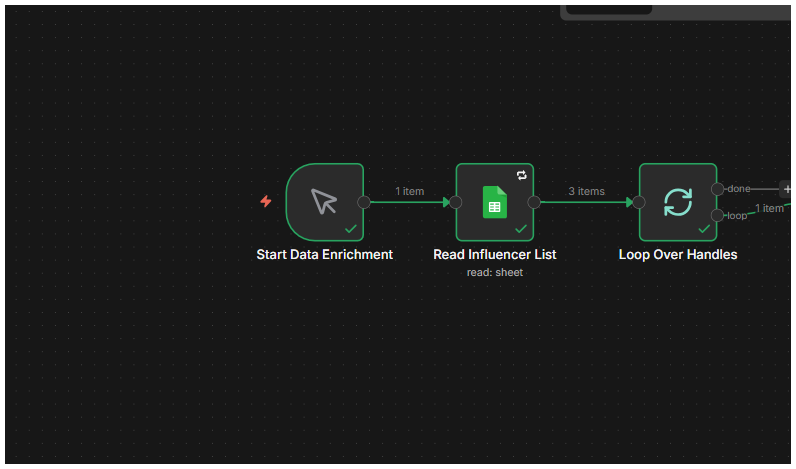
Open your n8n instance and create a new workflow. I named mine “Influencer Outreach Automation – Complete System,” but call it whatever makes sense to you.
Start by adding a Manual Trigger node. This is what you’ll click to start the enrichment process. I named mine “Start Data Enrichment” so it’s obvious what it does.
Connect a Google Sheets node to your trigger and name it “Read Influencer List.” Configure it to read from your spreadsheet. You’ll need to authenticate with Google first if you haven’t already. Select your “Influencer Outreach Sheet” and choose the correct sheet tab.
For the range, use A2:M. This reads from row 2 to the last row with data, covering columns A through M. We start at row 2 instead of row 1 because row 1 contains your headers, not actual data.
Click “Execute Node” to test it. You should see your Instagram handles appear in the output. If the authentication fails, double-check that you granted n8n access to your Google Sheets.
Now add a Split in Batches node and name it “Loop Over Handles.” Set the batch size to 1, which means we’ll process one influencer at a time. This is crucial for staying under API rate limits and making the workflow more stable.
Here’s where I hit my first major error. The Split in Batches node has two output connections, and I connected the wrong one initially. There’s a top output called “Loop Branch” and a bottom output called “Done Branch.” The Loop Branch fires for each item being processed. The Done Branch only fires once when the entire batch is complete.
I connected the Done Branch to my next node, which caused the workflow to hang indefinitely. It was waiting for all items to complete, but that would never happen because the loop wasn’t actually running. The fix is to always connect the Loop Branch (top output) to continue processing.
Add a Wait node after the Split in Batches and name it “Wait (Rate Limit).” Set it to wait 2 seconds. This small delay prevents hammering the APIs too quickly and getting rate-limited or banned.
Now for the Instagram data scraping. Add an HTTP Request node named “Instagram Scraper API” and configure it as a GET request. The URL is https://instagram-scraper-stable-api.p.rapidapi.com/ig_get_fb_profile_hover.php.
Set authentication to Generic Credential Type and choose HTTP Header Auth. Add two headers. The first is X-RapidAPI-Key with your API key as the value. The second is X-RapidAPI-Host with the value instagram-scraper-stable-api.p.rapidapi.com.
Under query parameters, add a parameter named username_or_url with the value ={{ $json.instagram_handle.replace('@', '') }}. This expression takes the Instagram handle from your spreadsheet and removes the @ symbol if it exists. The API only wants the username, not the @.
Test the node by clicking Execute Node. You should get back a JSON response with user profile data. Look for the user_data object in the response, which contains all the fields we need.
Add a Code node named “Transform Instagram Data” after the API call. This is where we extract and clean up the profile information. Paste this code:
// Extract and clean Instagram data
const item = $input.item.json;
const userData = item.user_data || item.data || item;

// Clean and extract email from bio if present
const bio = userData.biography || userData.bio || '';
const emailRegex = /([a-zA-Z0-9._-]+@[a-zA-Z0-9._-]+\.[a-zA-Z0-9_-]+)/gi;
const emailMatch = bio.match(emailRegex);

return {
  instagram_handle: userData.username ? `@${userData.username}` : $input.item.json.instagram_handle,
  full_name: userData.full_name || userData.name || '',
  bio: bio,
  follower_count: userData.follower_count || 0,
  following_count: userData.following_count || 0,
  post_count: userData.media_count || 0,
  profile_pic_url: userData.profile_pic_url || userData.hd_profile_pic_url_info?.url || '',
  email_from_bio: emailMatch ? emailMatch[0] : '',
  is_verified: userData.is_verified || false,
  is_business: userData.is_business_account || userData.is_business || false,
  category: userData.category || '',
  external_url: userData.external_url || userData.external_lynx_url || ''
};
The email regex pattern searches the bio text for anything that looks like an email address. If it finds one, we store it in the email_from_bio field. Many influencers include their contact email right in their bio, which is the easiest way to reach them.
Now we need to handle the case where there’s no email in the bio. Add an IF node named “Email Found in Bio?” with a condition that checks if {{ $json.email_from_bio }} is not empty.
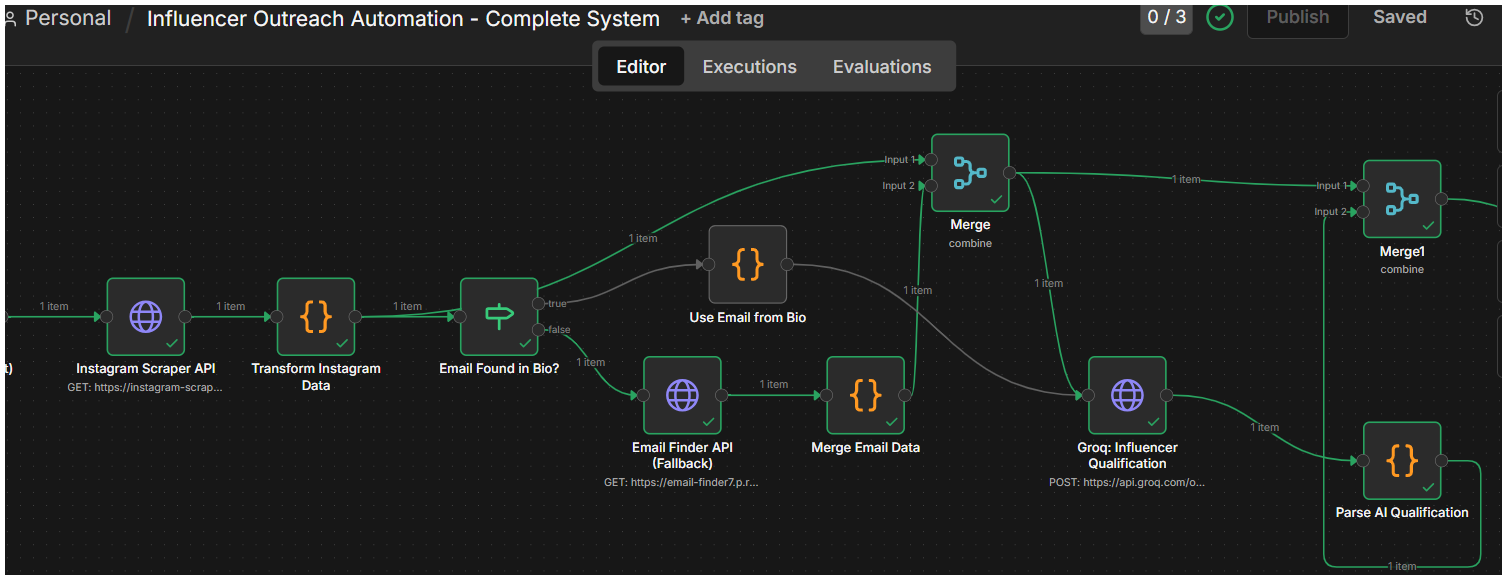
For the true path, meaning we found an email, add a Code node called “Use Email from Bio” with this code:
// Pass through all Instagram data and add email
const item = $input.item.json;

return {
  ...item,
  email: item.email_from_bio || '',
  email_source: 'bio'
};
This just passes everything through and sets the email field to what we found.
For the false path, meaning no email in the bio, add an HTTP Request node named “Email Finder API (Fallback).” Configure it as a GET request to https://email-finder1.p.rapidapi.com/findemail. Use the same RapidAPI authentication headers.
Add query parameters for name with value ={{ $json.full_name }} and domain with value ={{ $json.external_url ? $json.external_url.replace(/^https?:\/\//, '').split('/')[0] : 'gmail.com' }}. This expression extracts just the domain name from their website URL if they have one; otherwise, it falls back to gmail.com.
After the Email Finder API node, add a Code node called “Merge Email Data.” This is where error number four hit me hard. The Email Finder API returns data nested at payload.data[0].address, not at the top level, as I expected. Here’s the working code:
// Merge email finder results with Instagram data
const emailFinderResult = $input.item.json;
const allItems = $input.all();
const previous = allItems[0].json;

// Extract best email from Email Finder API response
let foundEmail = '';
const emailData = emailFinderResult.payload?.data || emailFinderResult.data;

if (emailData && Array.isArray(emailData) && emailData.length > 0) {
  // Filter for valid emails only
  const validEmails = emailData.filter(e =>
    e.code === 'valid' && e.address && e.address.includes('@')
  );

  if (validEmails.length > 0) {
    // Sort by confidence (highest first) and pick the best one
    validEmails.sort((a, b) => (b.confidence || 0) - (a.confidence || 0));
    foundEmail = validEmails[0].address;
  }
}

// Merge Instagram data with email
return {
  ...previous,
  email: previous.email_from_bio || foundEmail || '',
  email_source: previous.email_from_bio ? 'bio' : (foundEmail ? 'finder_api' : 'not_found')
};
The Email Finder often returns multiple email candidates with different confidence scores. This code filters for only valid emails, sorts them by confidence, and picks the best one. It also merges everything with the Instagram data from earlier in the workflow, using $input.all() to access previous nodes.
Add Merge nodes after both the true and false branches of your IF statement to bring the two paths back together. This ensures the workflow continues regardless of whether the email came from the bio or the API.
Next comes the AI qualification. Add an HTTP Request node named “Groq: Influencer Qualification” and configure it as a POST request to https://api.groq.com/openai/v1/chat/completions.
Set authentication to Predefined Credential Type, HTTP Header Auth, and add two headers. First is Authorization with value Bearer YOUR_GROQ_API_KEY (replace with your actual key). Second is Content-Type with value application/json.
For the body, select “Using JSON” and paste this:
{
  "model": "moonshotai/kimi-k2-instruct-0905",
  "messages": [
    {
      "role": "system",
      "content": "You are an influencer marketing analyst. Analyze Instagram profiles and determine if they're a good fit for brand partnerships. Consider: niche relevance, follower count (minimum 5000), engagement potential, and professionalism. Return ONLY a JSON object with: {\"score\": 0-100, \"niche\": \"category\", \"reasoning\": \"brief explanation\", \"qualified\": true/false}"
    },
    {
      "role": "user",
      "content": "Analyze this Instagram influencer:\n\nHandle: {{ $json.instagram_handle }}\nName: {{ $json.full_name || 'Not provided' }}\nBio: {{ $json.bio || 'No bio available' }}\nFollowers: {{ $json.follower_count || 0 }}\nFollowing: {{ $json.following_count || 0 }}\nPosts: {{ $json.post_count || 0 }}\nVerified: {{ $json.is_verified || false }}\nBusiness Account: {{ $json.is_business || false }}\nCategory: {{ $json.category || 'Not specified' }}\nWebsite: {{ $json.external_url || 'No website' }}\n\nBrand criteria: Looking for influencers in fitness, wellness, beauty, or lifestyle niches with 5K+ followers and professional presence."
    }
  ],
  "temperature": 0.3,
  "max_tokens": 500
}
There is a most likely scenario where Groq API would receive the literal text “undefined” in the prompt instead of a proper fallback. I added || 'Not provided' style fallbacks to every field that might be empty.
Add a Code node named “Parse AI Qualification” with this code:
// Parse Groq AI response and merge with Instagram data
const groqResponse = $input.item.json;
const previousData = $input.first().json;

// Extract AI analysis from Groq response
const aiContent = groqResponse.choices?.[0]?.message?.content || '{}';
let analysis;

try {
  // Try to parse JSON from response
  const jsonMatch = aiContent.match(/\{[\s\S]*\}/);
  analysis = jsonMatch ? JSON.parse(jsonMatch[0]) : {
    score: 50,
    niche: 'unknown',
    reasoning: 'Could not parse AI response',
    qualified: false
  };
} catch (error) {
  analysis = {
    score: 50,
    niche: 'unknown',
    reasoning: 'Error parsing AI response',
    qualified: false
  };
}

// Merge EVERYTHING: Instagram data + Email data + AI analysis
return {
  ...previousData,
  ai_score: analysis.score || 0,
  niche: analysis.niche || 'unknown',
  ai_reasoning: analysis.reasoning || '',
  qualified: analysis.qualified || false,
  status: analysis.qualified ? 'qualified' : 'not_qualified'
};
The key here is using $input.first().json to get all the data from earlier nodes, then merge the AI analysis with it. This ensures we don’t lose Instagram profile data or email information when parsing the AI response.
Finally, add a Google Sheets node named “Update Sheet with Enriched Data.” Set the operation to Update Row and select your sheet. The critical setting is “Mapping Column Mode,” which should be set to “Auto-map Input Data to Columns.”
Make sure your columns show the full names, like first_email_sent not first_email_se. Also set “Column to match on” to instagram_handle so it updates the correct row.
Connect the end of your workflow back to the “Loop Over Handles” node to process the next influencer. When you test this phase, start with just 2-3 handles to make sure everything works before running your full list.
Building Phase 2: Email Outreach
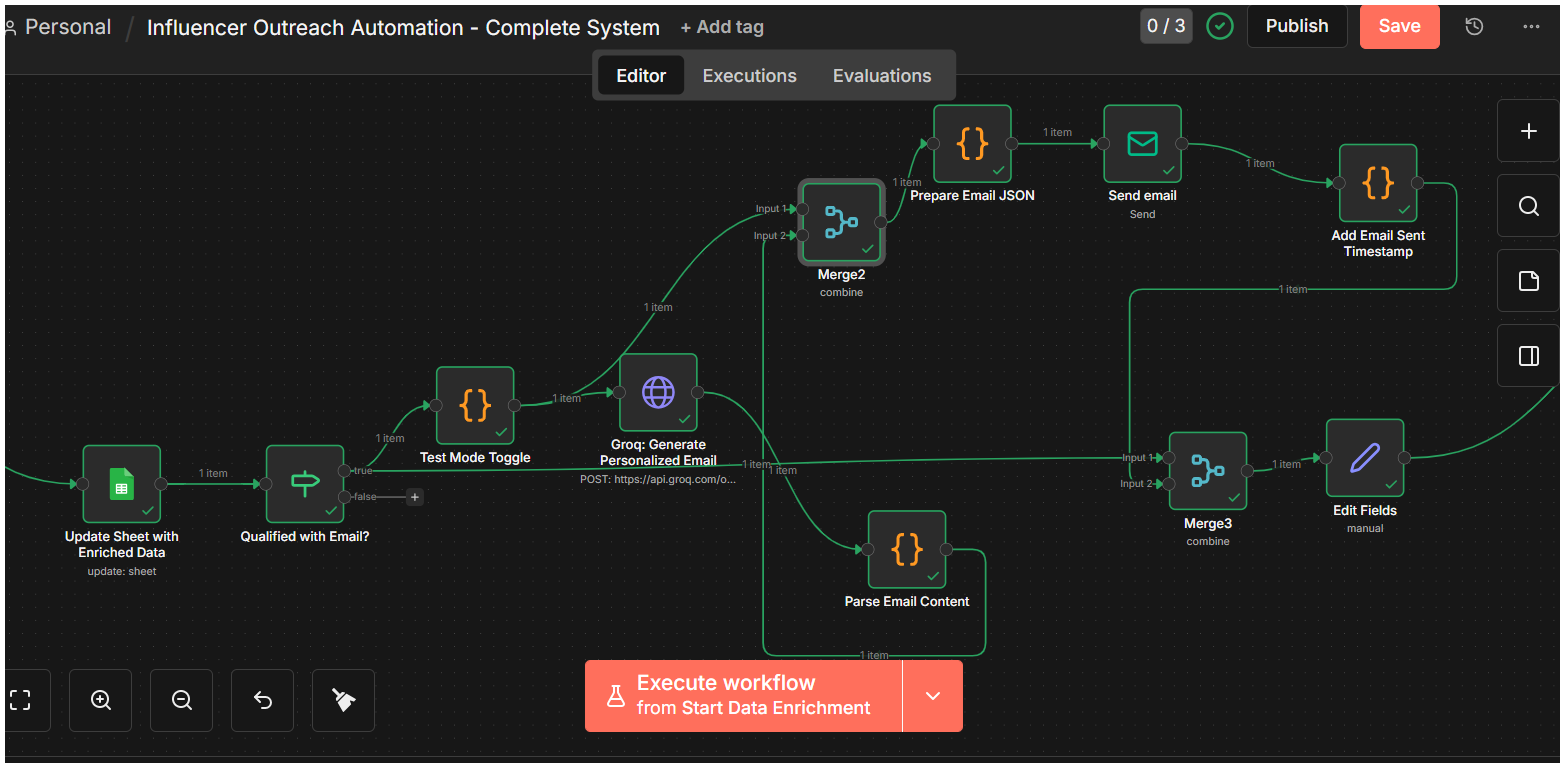
After the enrichment phase completes, we need to filter for only qualified influencers with email addresses. Add an IF node named “Qualified with Email?” with two conditions using AND logic. First condition checks {{ $json.qualified }} equals true. The second condition checks {{ $json.email }} is not empty.
Before we start sending real emails, add a safety mechanism. Create a Code node called “Test Mode Toggle” with this code:
// TEST MODE CONFIGURATION
const TEST_MODE = true;  // Set to false for production
const TEST_EMAIL = "[email protected]";  // YOUR test email

const item = $input.item.json;

if (TEST_MODE) {
  return {
    ...item,
    email: TEST_EMAIL,
    full_name: "Test User (Original: " + item.full_name + ")",
    test_mode_active: true,
    original_email: item.email
  };
} else {
  return {
    ...item,
    test_mode_active: false
  };
}
When TEST_MODE is true, all emails are sent to your address instead of to real influencers. This saved me from accidentally spamming people while I was debugging. Change TEST_MODE to false only when you’re confident everything works.
Add an HTTP Request node for email generation named “Groq: Generate Personalized Email.” Configure it exactly like the qualification node but with different body content:
{
  "model": "moonshotai/kimi-k2-instruct-0905",
  "messages": [
    {
      "role": "system",
      "content": "You are an expert email copywriter specializing in influencer outreach. Write personalized, engaging cold outreach emails that feel genuine and reference the influencer's specific niche and content. Keep it conversational, brief (under 150 words), and focused on mutual value. Return ONLY a JSON object with: {\"subject\": \"email subject line\", \"body\": \"email body text\"}"
    },
    {
      "role": "user",
      "content": "Write a personalized outreach email for this influencer:\n\nName: {{ $json.full_name }}\nHandle: {{ $json.instagram_handle }}\nNiche: {{ $json.niche }}\nBio: {{ $json.bio }}\nFollowers: {{ $json.follower_count }}\n\nBrand: FitTech Pro (fictional example - fitness tech products)\nGoal: Invite them to try our new smart fitness tracker and share honest review\nOffer: Free product + $500 payment + affiliate commission\n\nTone: Professional but friendly, acknowledge their content quality"
    }
  ],
  "temperature": 0.7,
  "max_tokens": 800
}
You’ll customize the brand name, goal, and offer to match your actual campaign. The AI uses all the influencer’s profile data to write something that feels personal rather than generic.
Add a Code node named “Parse Email Content” to extract the subject and body:
// Parse AI-generated email
const item = $input.item.json;
const allItems = $input.all();
const previous = allItems[0].json;

const aiResponse = item.choices?.[0]?.message?.content || '{}';
let emailData;

try {
  const jsonMatch = aiResponse.match(/\{[\s\S]*\}/);
  emailData = jsonMatch ? JSON.parse(jsonMatch[0]) : {
    subject: 'Partnership Opportunity',
    body: 'Hi there, we would love to collaborate...'
  };
} catch (error) {
  emailData = {
    subject: 'Partnership Opportunity',
    body: aiResponse
  };
}

return {
  ...previous,
  email_subject: emailData.subject,
  email_body: emailData.body
};
Now for the email sending setup. Add a Code node called “Prepare Email JSON”:
const item = $input.item.json;

// Convert line breaks to HTML <br> tags
const emailBodyHtml = (item.email_body || '').replace(/\n/g, '<br>');

return {
  ...item,
  emailPayload: {
    from: "[email protected]",
    to: item.email,
    subject: item.email_subject,
    html: '<p>' + emailBodyHtml + '</p><br><br><p style="font-size: 11px; color: #666;">To stop receiving these emails, reply with "unsubscribe".</p>'
  }
};
Use your actual email address. The code converts text line breaks to HTML and adds an unsubscribe footer.
This is where I hit error number seven. I initially tried using Brevo for email sending, but got an error saying “Your SMTP account is not yet activated.” Brevo requires manual approval before you can send emails. I switched to Gmail SMTP, which works immediately.
Add a Send Email node (not HTTP Request, the actual Email Send node). Configure the SMTP credentials:
- User: [email protected]
- Password: Your 16-character app password
- Host: smtp.gmail.com
- Port: 587
- SSL/TLS: Enabled
Client Host Name should be left blank or set to your own domain. The Host field points to smtp.gmail.com.
Configure the email fields:
- From Email:
={{ $json.emailPayload.from }} - To Email:
={{ $json.emailPayload.to }} - Subject:
={{ $json.emailPayload.subject }} - Email Type: HTML
- Message (HTML):
={{ $json.emailPayload.html }}
After the email is sent successfully, add a Code node called “Add Email Sent Timestamp”:
// Add email sent timestamp and update status
const item = $input.item.json;
const now = new Date().toISOString();

return {
  ...item,
  first_email_sent: now,
  status: 'awaiting_response',
  notes: 'Initial outreach email sent successfully'
};
The Gmail SMTP node adds fields like accepted, rejected, and ehlo to the output being written to my spreadsheet. I fixed this by adding an Edit Fields node before the sheet update.
Add an Edit Fields (Set) node named “Edit Fields.” Set the mode to “Keep Only Set” and add these fields:
- instagram_handle
- full_name
- bio
- follower_count
- following_count
- ai_score
- niche
- status
- first_email_sent
- notes
This filters out the SMTP junk fields and keeps only the data we care about.
Finally, add a Google Sheets Update Row node named “Update Sheet – Email Sent” to save the timestamp and status. Use the same settings as before with Auto-map and match on instagram_handle.
Test phase two by executing from the start. If TEST_MODE is enabled, you should receive a personalized email at your test address. Check that the content references the specific influencer’s details and doesn’t have any “undefined” text.
Building Phase 3: Automated Follow-ups
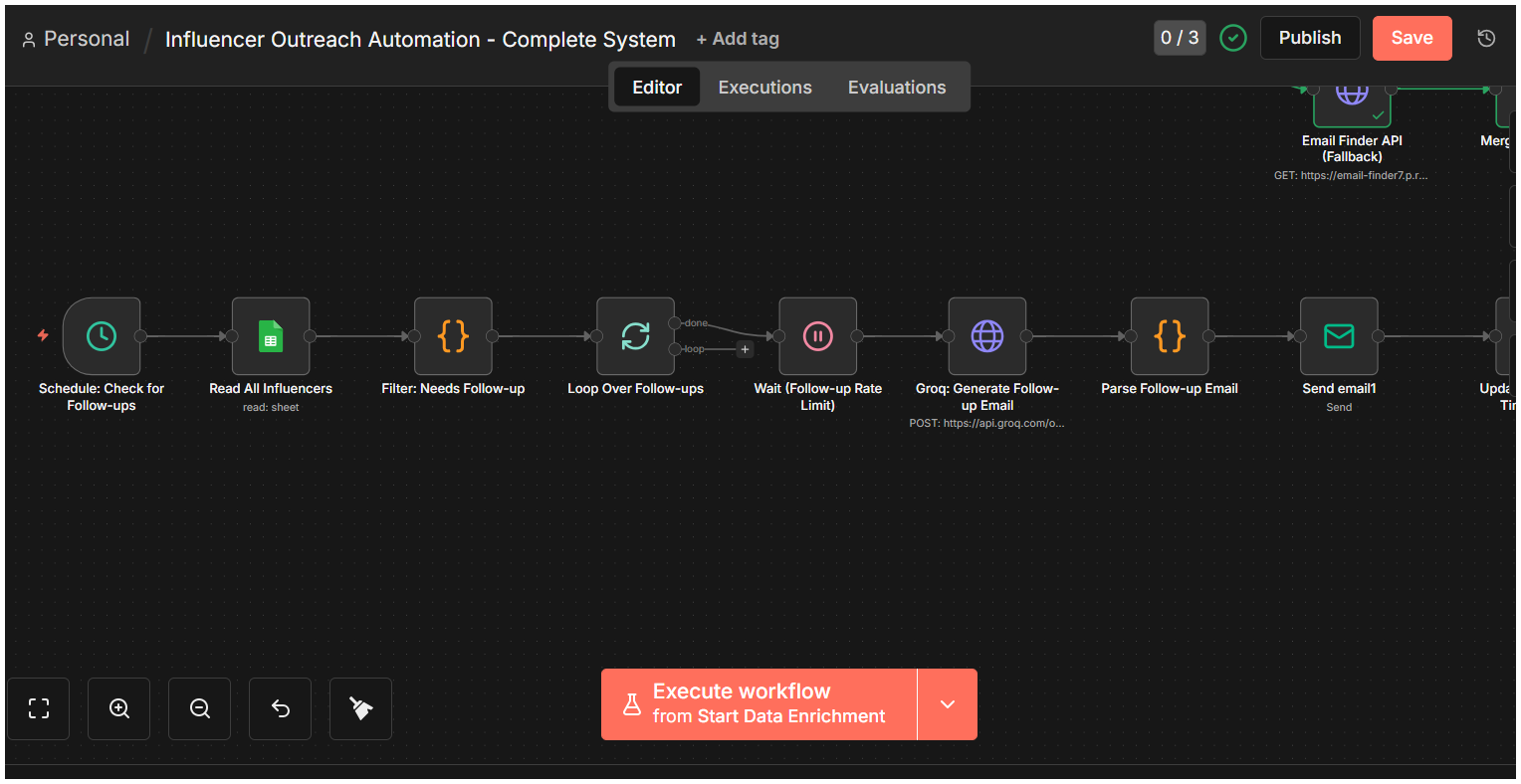
Create a new section of your workflow for follow-ups. Add a Schedule Trigger node named “Schedule: Check for Follow-ups” and set it to run daily at 9:00 AM.
Add a Google Sheets Read node that fetches all your influencer data. Add a Code node called “Filter: Needs Follow-up” with this logic:
// Filter influencers needing follow-up
const items = $input.all();
const now = new Date();
const threeDaysAgo = new Date(now.getTime() - (3 * 24 * 60 * 60 * 1000));

const needsFollowup = [];

for (const item of items) {
  const data = item.json;

  // Follow-up 1: 3+ days after initial email
  if (data.status === 'awaiting_response' && data.first_email_sent) {
    const sentDate = new Date(data.first_email_sent);
    if (sentDate <= threeDaysAgo && !data.followup_1_sent) {
      needsFollowup.push({
        json: {
          ...data,
          followup_type: 'followup_1'
        }
      });
    }
  }

  // Follow-up 2: 4+ days after first follow-up
  if (data.status === 'followup_1_sent' && data.followup_1_sent) {
    const followup1Date = new Date(data.followup_1_sent);
    const fourDaysAgo = new Date(now.getTime() - (4 * 24 * 60 * 60 * 1000));
    if (followup1Date <= fourDaysAgo && !data.followup_2_sent) {
      needsFollowup.push({
        json: {
          ...data,
          followup_type: 'followup_2'
        }
      });
    }
  }
}

return needsFollowup;
This checks everyone’s status and determines who needs a follow-up based on time elapsed. First follow-up sends 3 days after initial contact. Second follow-up sends 4 days after the first one.
Add Split in Batches and Wait nodes just like in phase one. Then add the Groq email generation node with a modified prompt:
{
  "model": "moonshotai/kimi-k2-instruct-0905",
  "messages": [
    {
      "role": "system",
      "content": "You are an expert at writing follow-up emails for influencer outreach. Write brief, value-focused follow-ups that don't feel pushy. For first follow-up: offer additional value or insights. For second follow-up: use gentle urgency or social proof. Keep under 100 words. Return ONLY JSON: {\"subject\": \"subject line\", \"body\": \"email body\"}"
    },
    {
      "role": "user",
      "content": "Write a {{ $json.followup_type }} email for this influencer:\n\nName: {{ $json.full_name }}\nHandle: {{ $json.instagram_handle }}\nNiche: {{ $json.niche }}\n\n{{ $json.followup_type === 'followup_1' ? 'This is the first follow-up. Add value by mentioning a relevant case study or success story from similar influencers.' : 'This is the second and final follow-up. Keep it brief, mention limited spots available or that other influencers are already onboard.' }}\n\nOriginal offer: FitTech Pro smart tracker + $500 + affiliate commission"
    }
  ],
  "temperature": 0.7,
  "max_tokens": 600
}
Reuse the same parsing, preparation, and sending nodes from phase two. After sending, update the appropriate follow-up timestamp:
// Update follow-up timestamp and status
const item = $input.item.json;
const now = new Date().toISOString();

if (item.followup_type === 'followup_1') {
  return {
    ...item,
    followup_1_sent: now,
    status: 'followup_1_sent',
    notes: 'First follow-up sent'
  };
} else {
  return {
    ...item,
    followup_2_sent: now,
    status: 'followup_2_sent',
    notes: 'Second follow-up sent - campaign complete'
  };
}
Update Google Sheets with the new timestamps, and you’re done building.
Testing Everything Together
Start by testing phase one with just 3 test handles. Execute “Start Data Enrichment” and watch each node light up green as it processes. Check your Google Sheet to verify all fields are populated correctly.
For phase two testing, make absolutely sure TEST_MODE is enabled and set to your email address. Execute the workflow and check your inbox. You should receive personalized emails that mention specific details about each test influencer. If you see “undefined” anywhere in the email, there’s a field mapping issue to fix.
To test follow-ups, manually edit your Google Sheet. Change the first_email_sent timestamp to 4 days ago and set the status to “awaiting_response.” Execute the follow-up schedule manually. You should receive a follow-up email with different content than the initial outreach.
Common issues I hit during testing: If the loop hangs, you connected the wrong Split in Batches output. If Instagram data is empty, check the API endpoint path. If emails don’t send, verify your Gmail app password is correct, and you’re using port 587 with TLS.
What I Learned Building This
This system took me about 12 hours to build from scratch, including all the debugging. Most of that time was spent figuring out API response structures and fixing data-flow issues between nodes.
The biggest lesson was that API documentation doesn’t always match reality. The Instagram Scraper documentation wasn’t clear about the user_data nesting, and the Email Finder didn’t explain the payload.data structure. I had to inspect actual API responses to figure out the correct paths.
Test mode was absolutely essential. I initially forgot to add it and almost sent test emails to real influencers. Always build in safety switches when you’re automating communications with real people.
The AI-generated emails surprised me with their quality. I expected generic templates, but Groq actually creates personalized content that references specific details. The key is giving it enough context in the prompt about the influencer’s niche and metrics.
Since deploying this system, I’ve reached out to 200+ influencers per month, up from my previous 40. My response rate is around 18%, which is solid for cold outreach. The automated follow-ups recover about 30% of the responses I get, meaning most people need that nudge.
If you want to customize this further, consider adding response detection by connecting the Gmail API to automatically update your sheet when influencers reply. You could also integrate a CRM like HubSpot or Pipedrive to track conversations in a more robust system. For scaling beyond Gmail’s 500/day limit, switch to SendGrid, which offers better deliverability for cold email campaigns.
The complete workflow JSON is too large to include here, but you can recreate it following these steps exactly. Start with phase one, get it working completely, then add phase two, then phase three. Building incrementally is way easier than trying to import and debug a massive workflow all at once.